
What you need
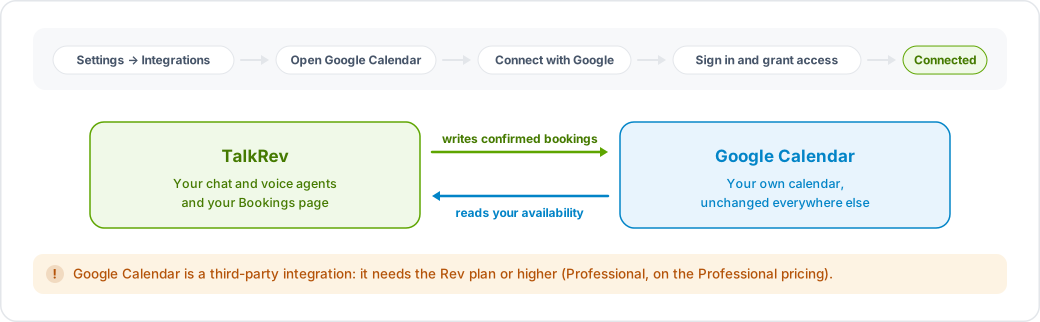
Google Calendar is a third-party integration, which requires the Rev plan or higher. On a lower plan the page shows an upgrade prompt instead of the connect button. On the Professional pricing, third-party integrations are included in Professional but not in Personal.
Connect it
- Go to Settings → Integrations.
- Find Google Calendar and open it.
- Click Authorize with Google.
- Sign in and grant access. TalkRev asks to see and manage your calendars and their events — that is what lets the agent read availability and create appointments.
- You are returned to TalkRev and see "Google Calendar connected successfully!"

Confirm it is working
The integration page shows your calendar name and a Connected badge. Click Verify connection at any time to re-check it.
Once connected, your chat and voice agents can check availability, list events and create appointments. Book a test appointment through Try Chatbot and confirm it appears in Google Calendar.
Settings you can change
On the same page you can set your default timezone, cancellation rules, booking rules and notifications. Save after editing.
Disconnect
Click Disconnect Google Calendar and confirm. Your agent stops reading from and writing to the calendar immediately. Appointments already in your calendar stay there.
Careful with downgrades. If you move from Professional to Personal, Google Calendar is disconnected automatically, and you will need to reconnect it after upgrading again.