
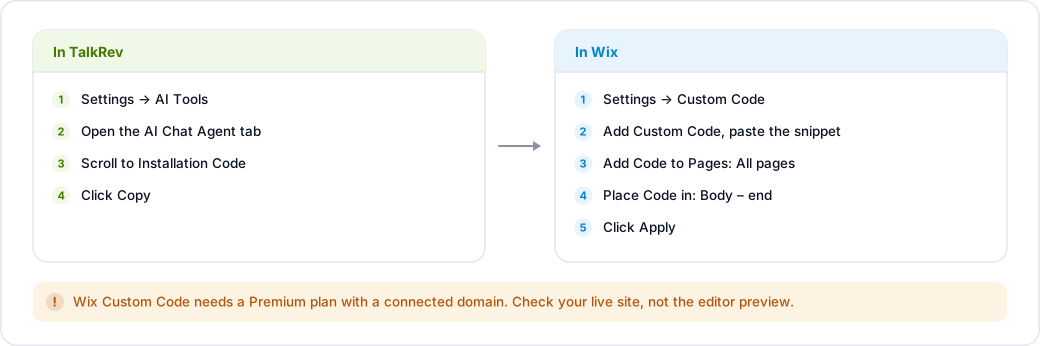
Before you start
Wix Custom Code requires a Premium plan with a connected domain. On a free Wix site the option is not available.
Get your code
- In TalkRev, go to Settings → AI Tools and open the AI Chat Agent tab.
- Scroll to Installation Code and click Copy.
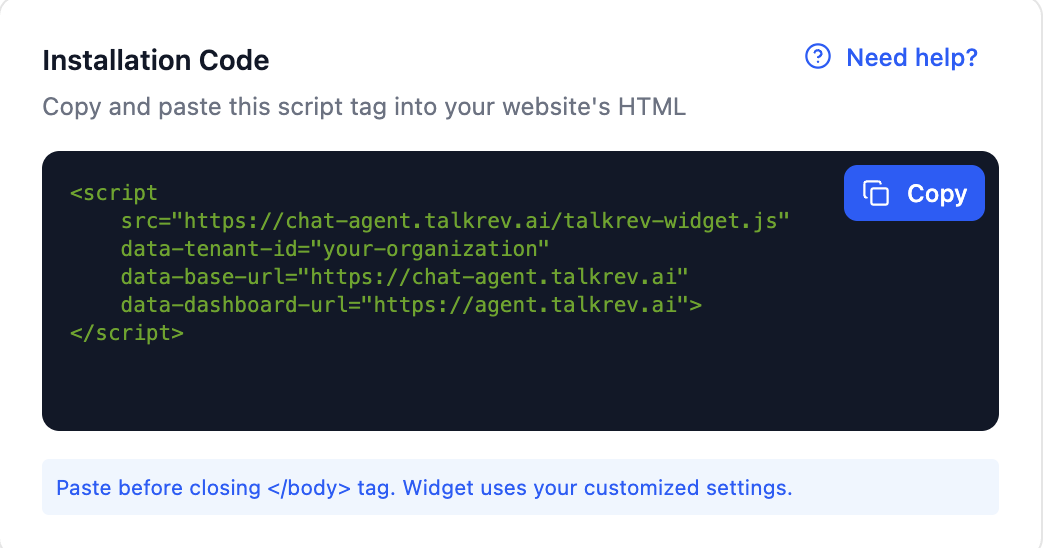
The snippet already contains your organization's details:
<script
    src="https://chat-agent.talkrev.ai/talkrev-widget.js"
    data-tenant-id="your-organization"
    data-base-url="https://chat-agent.talkrev.ai"
    data-dashboard-url="https://agent.talkrev.ai">
</script>
Always copy it from the dashboard rather than typing it by hand. If you see YOUR_TENANT_ID in the code instead of your organization name, your organization has no slug yet — contact TalkRev support before continuing.
Paste it into Wix
- In your Wix dashboard, go to Settings → Custom Code.
- Click Add Custom Code.
- Paste the snippet into the code box.
- Under Add Code to Pages, choose All pages.
- Under Place Code in, choose Body - end.
- Click Apply.
Check it worked
Reload your live site — not the Wix editor preview. The chat bubble appears in the bottom-right corner within a few seconds.
If nothing appears, the most common cause is that chat is switched off for your organization. See The chat widget doesn't show on my site.