
Do this once before you announce your agent, and again after any big change to your knowledge base.
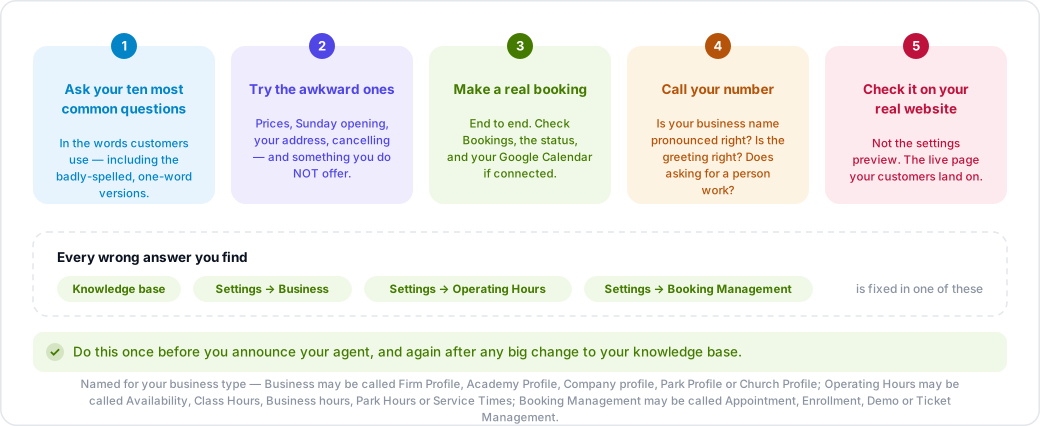
1. Ask your ten most common questions
Open Try Chatbot under Settings → AI Tools → AI Chat Agent. Ask the questions your customers actually ask, in the words they use — including the badly-spelled, one-word versions.
Write down every answer that is wrong or vague. Almost all of them are fixed in the knowledge base, not in the instructions.
2. Try the awkward ones
These are the questions that expose gaps:
- "How much does it cost?" — is your pricing in the knowledge base at all?
- "Are you open on Sunday?" — does it match Settings → Operating Hours?
- "Where are you?" — is the address in Settings → Business?
- "Can I cancel?" — does it match your rules in Settings → Booking Management?
- Something you do not offer — does it say so, or invent it?
3. Make a real booking
Book an appointment end to end. Check that it appears under Bookings, that its status is what you expected, and — if Google Calendar is connected — that the event is in your calendar at the right time.
If payment is required, follow it through to the end and confirm the booking moves from Pending to Confirmed.
4. Test the voice agent too
If you have a phone number, call it. Listen for three things: whether your business name is pronounced correctly, whether the greeting is right, and whether asking to speak to a person does what you expect.
5. Check it on your real website
Try Chatbot proves your settings are right; it does not prove the widget is installed correctly. Open your own site on a phone and on a computer and check the bubble is there and opens.
6. Then check the numbers a week later
Open Analytics after a week of real traffic. If conversations are happening but conversion is near zero, the agent is answering but not asking for the booking — that is a Custom Instructions fix.