
What it does
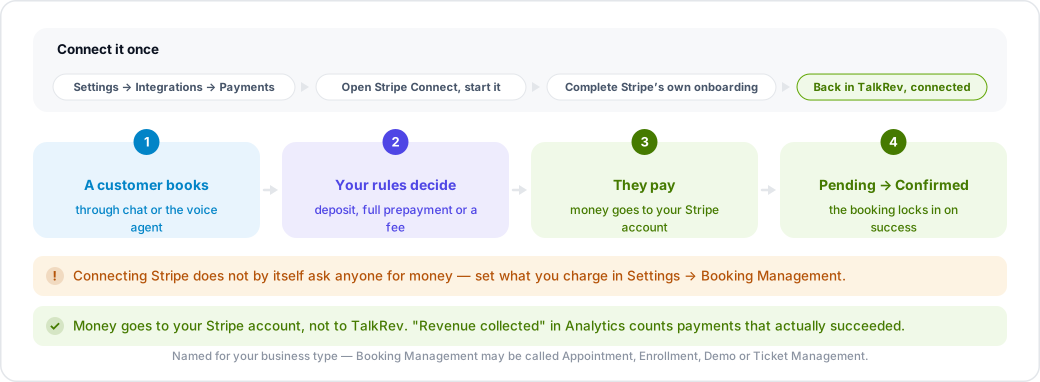
Connecting Stripe lets your agent take payment at the moment of booking — deposits, full prepayment or a booking fee, depending on your rules. Money goes to your Stripe account, not to TalkRev.
Connect it
- Go to Settings → Integrations and find the Payments section.
- Open Stripe Connect and start the connection.
- Complete Stripe's onboarding — business details, bank account and identity verification. This is Stripe's process, not TalkRev's.
- You are returned to TalkRev when Stripe confirms the account.
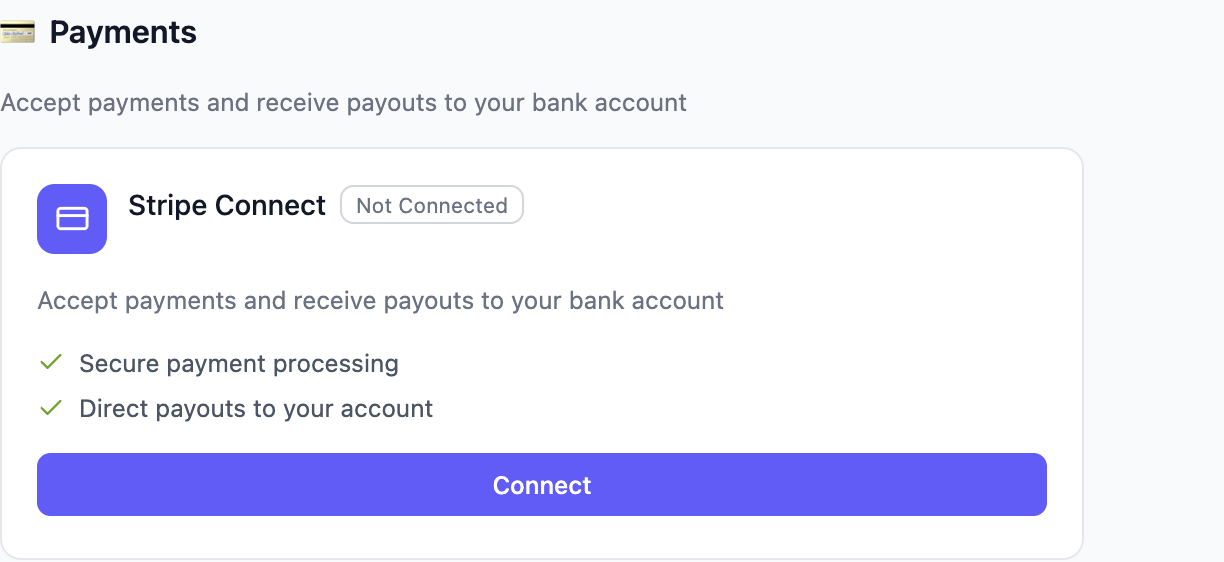
Until Stripe finishes verifying your account, payments may be enabled for testing but payouts to your bank are held. That is normal and it is on Stripe's side.
Then set your payment rules
Connecting Stripe does not by itself ask anyone for money. Go to Settings → Booking Management and choose what you want: prepayment, deposits, pay on arrival, booking fees. See Booking rules, deposits and cancellations.
Test it before you announce it
Make a booking through Try Chatbot that requires payment, and follow it all the way through. Check that the booking moves from Pending to Confirmed and that the payment appears in your Stripe dashboard.
Where payments show up in TalkRev
The Revenue collected figure on the Analytics page counts payments that actually succeeded, by payment date. Pending and failed payments are not included, so it is money collected rather than money booked.