
Invite someone
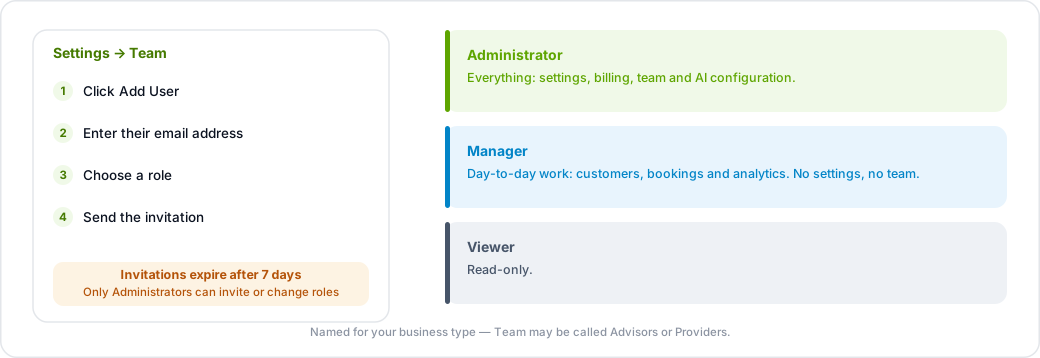
- Go to Settings → Team.
- Click Add user.
- Enter their email address and choose a role.
- Send the invitation.

Depending on your type of business this section may be called Advisors or Providers instead of Team. It is the same page.
They receive an email with a link to join your organization. Invitations expire after 7 days — if one lapses, send a new one. You cannot have two active invitations for the same email address at once.
Only Administrators can invite people, change roles or remove members.
The three roles
- Administrator — everything: settings, billing, team management and AI configuration.
- Manager — day-to-day work: customers, bookings and analytics. Cannot change settings or manage the team.
- Viewer — read-only.
On a legal organization there is an extra rule: Administrators and Managers see the whole firm's intake and matters, while a Viewer sees only the matters and bookings assigned to them.
If the Add user button isn't there
Check your plan. On the Professional pricing, Personal includes 1 seat, so there is nobody to invite — upgrade to Professional, which includes 3. Other plans are not seat-limited.