
Set your hours
Go to Settings → Operating Hours. You can set three things:
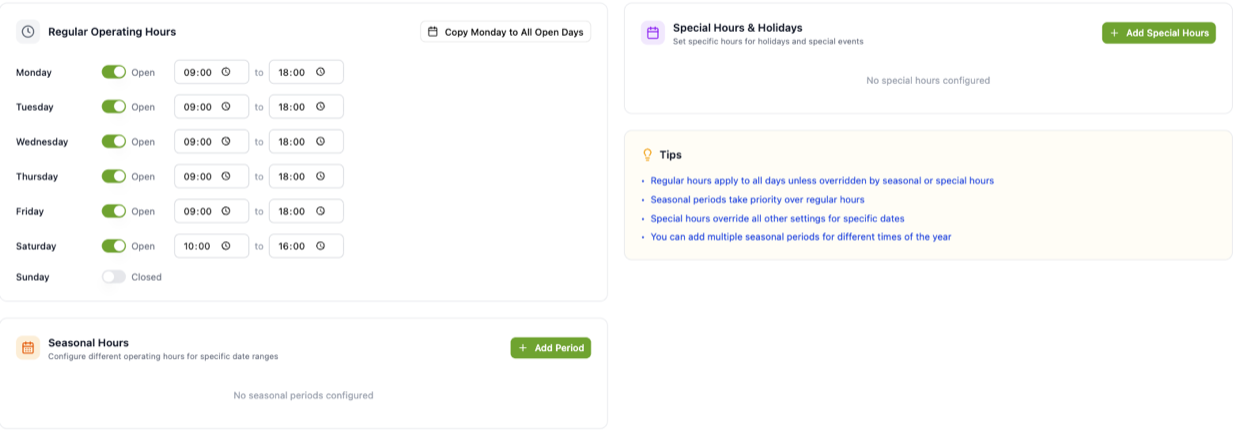
Depending on your type of business this section may be called Availability, Class Hours, Business hours, Park Hours or Service Times instead of Operating Hours. It is the same page.
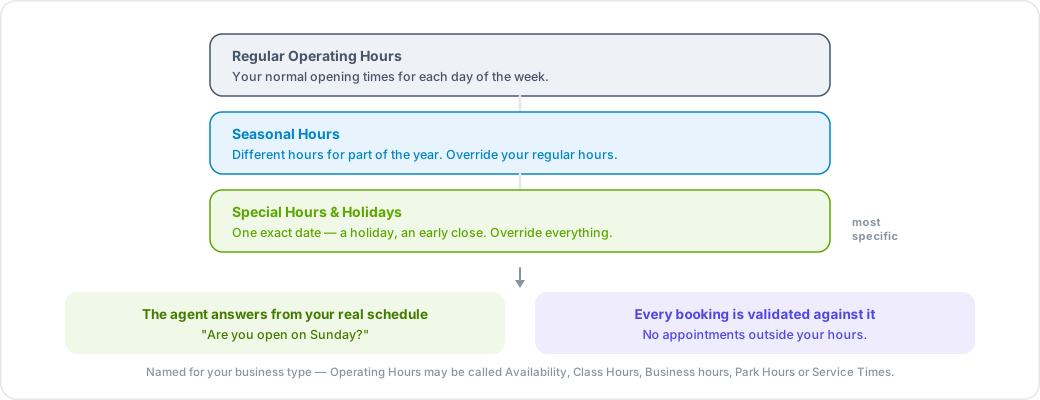
- Regular Operating Hours — your normal opening times for each day of the week.
- Special Hours & Holidays — one-off changes such as a public holiday or a day you close early.
- Seasonal Hours — different hours for part of the year.
They are checked in that order of priority, most specific first: a special hour set for an exact date wins over everything; a seasonal period wins over your regular hours for the dates it covers; and your Regular Operating Hours apply the rest of the time. So a single closed day inside a summer season still closes you on that day.
What your hours actually control
Bookings are validated against them
If a customer asks for a time when you are closed, the booking is rejected and the agent offers a valid time instead. This applies to bookings from chat, from a call, and from the dashboard.
Your agent knows them
Your schedule is given to the AI agent, so "are you open on Sunday?" is answered from your real hours rather than guessed.
What does not change outside your hours
This surprises people, so it is worth being clear: your agent stays available around the clock. It does not switch to an out-of-hours greeting, and calls are not turned away when you are closed. It keeps answering questions and taking bookings for your next open slot.
Most businesses prefer this, because it captures enquiries overnight and at weekends that would otherwise go to a competitor. But if you need calls handled differently outside your hours, contact TalkRev support so we can look at call transfer settings with you.
A common mistake
If bookings are being rejected at times you are sure you are open, check your timezone in Settings → Business first. Hours are applied in your organization's timezone, not the customer's.