
Everything is under Settings → AI Tools → Voice Concierge.
Greetings
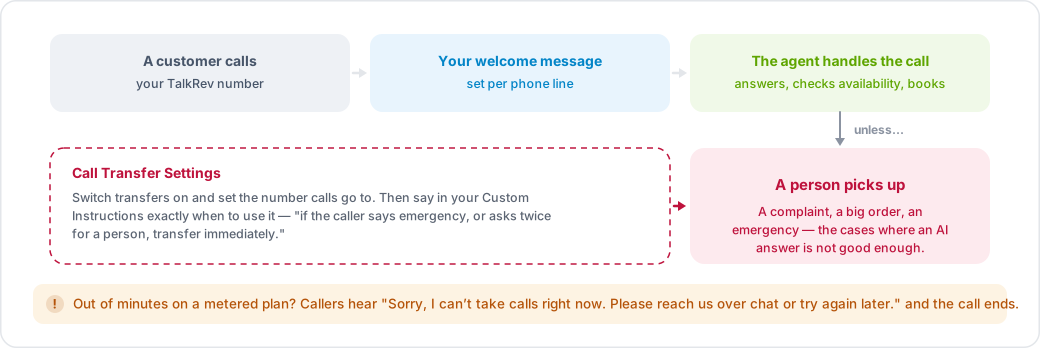
The Welcome Message is what a caller hears first. It is set per phone line, so a sales line and a support line can greet callers differently. For web calls (the call button on your site) the greeting is set per language instead.
Voice and delivery
Choose the voice your agent speaks with, and its emotional delivery. Test it before rolling it out — read a short greeting aloud in the preview and listen to how your business name is pronounced. If a name is mangled, spelling it phonetically in the welcome message usually fixes it.
Call behaviour
You can adjust how the agent handles the flow of a conversation, including how quickly it allows itself to be interrupted, how long it waits during silence, and the maximum length of a call. The defaults suit most businesses; change them only if you hear a specific problem.
Transferring to a person
Under Call Transfer Settings you can enable transfers and set the number calls are transferred to. Use it for the cases where an AI answer is not good enough: a complaint, a large order, an emergency.

Be explicit in your Custom Instructions about when to transfer, for example: "If the caller says the word emergency, or asks twice to speak to a person, transfer the call immediately."
What callers hear if you run out of minutes
On a metered plan, once you pass your voice allowance callers hear "Sorry, I can't take calls right now. Please reach us over chat or try again later." and the call ends. See Plans, limits and billing.